
The Terminal
#Command line through the Terminal
#####Note - All commands in this post are from an Ubuntu machine and may or may not work on other Linux distros.
“I was an active Windows user until I switched to Linux (Ubuntu in my case). And I haven’t looked back eversince.”
Linux is a great OS for a developer. It’s great for your coding needs and comes with a lot of features which you require for writing code. I am probably very, very late in interacting with a Unix-like system but it’s better late than never.
In this post, I have written about my experience so far with one of Linux’s most important tools, the Terminal.
Terminal
“The functionality a terminal window provides is one of the reasons I switched to Ubuntu.”
The use case of a terminal is different from how one would use a GUI. With GUI, you get a more detailed layout where the graphics are self-explanatory. Because of that you can make a more complex interface for users to interact with.
With command line, since there are no visuals for a layout, you do your work by just running text-based commands in the terminal window and get an output right there.
What and How?
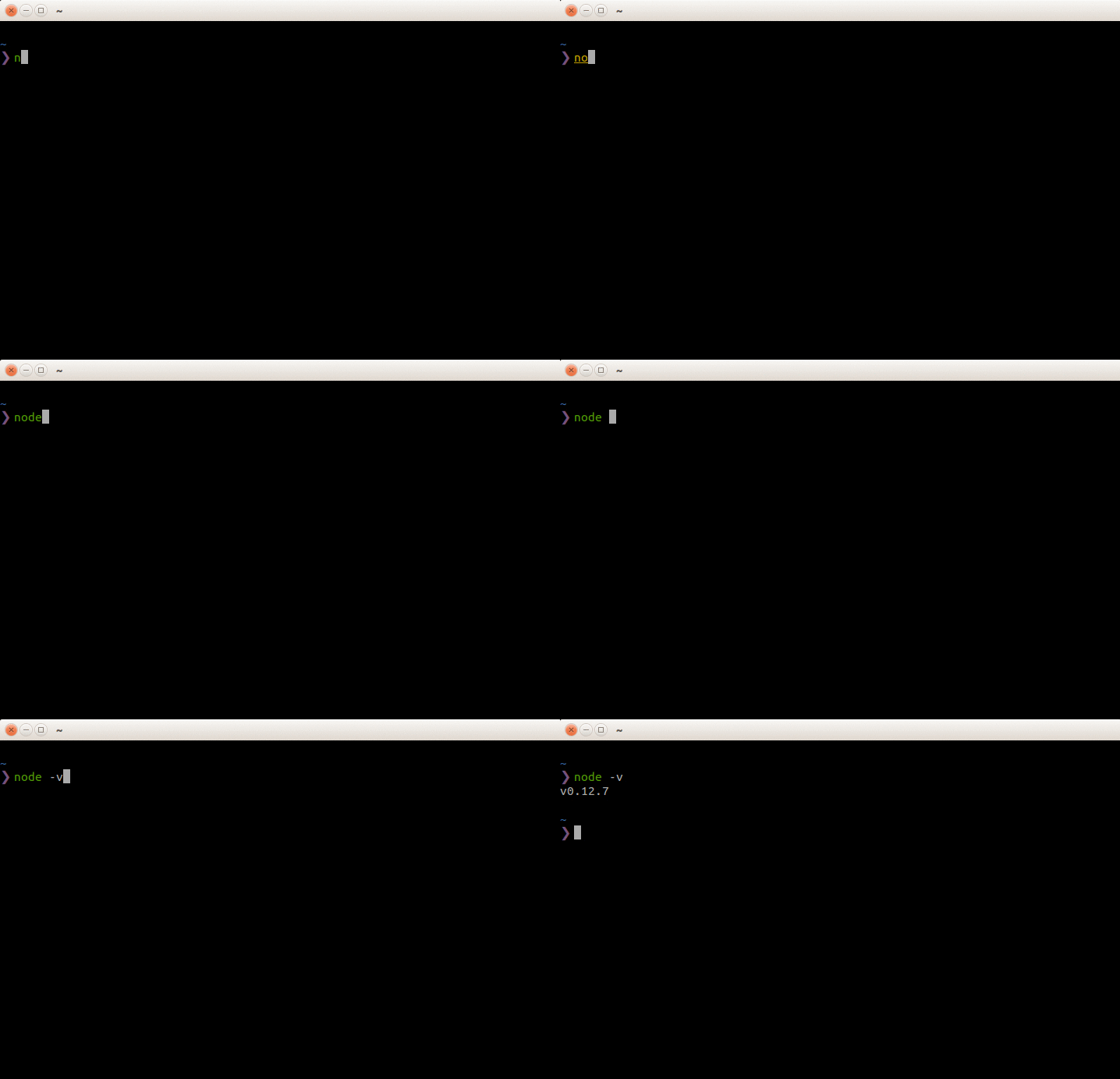
A terminal is basically a plain window with text and a blinking cursor and what you do with just those elements is what it’s all about. Honestly, this scared me initially because I simply had no idea about how it worked. My mind would ask questions like -
- What do I do, there’s nothing to click!
- How do I find files with this thing?
- How the hell am I going to remember so many commands!!
But once I started picking up on the basics, I felt more comfortable using a command line interface. And now, after a few weeks, I use the terminal to do almost everything on my computer. I even download YouTube videos with it!!
Terminal Commands
- Basics
Run ls from your current directory and it will display all files present in that directory.
Since I use Ubuntu, here are some more basic commands that you can run in a terminal window -
- Navigation
cd foldername(navigate to said folder)cd ..(go to current folder’s parent folder)cd --(go straight to home where all your folders (Desktop, Videos, etc) reside)
- Create/Edit/Destroy
mkdir articles(make new ‘articles’ directory)touch example.txt(create a new example.txt file)vim example.txt(open the file from current folder in vim editor)rm example.txt(remove file)
- Slightly Advanced Commands
- Install/Remove
sudo apt-get install packagename(Install a package)sudo apt-get remove packagename(remove said package)sudo apt-get update(update all packages)
The sudo apt-get update command will check all your listed repos and update all the packages from those repos with just one command. That is how simple and fast command line is!
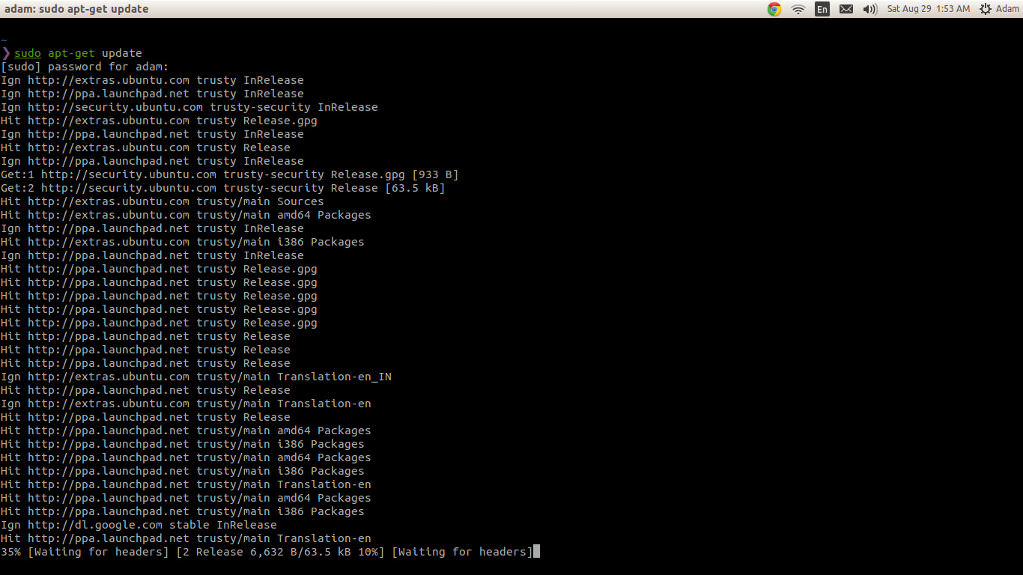
Same goes for installing/removing packages. All it takes is a sudo apt-get. Obviously there’s a lot more these commands can do but that’s not what this post is entirely about.
Utilities and Development
There are a lot of utilities which you can use to make your work easier and faster. For example, as a web developer, you may have to lookup the whois database some times to check some information. Here’s how you could do it from the terminal -
whois github.io
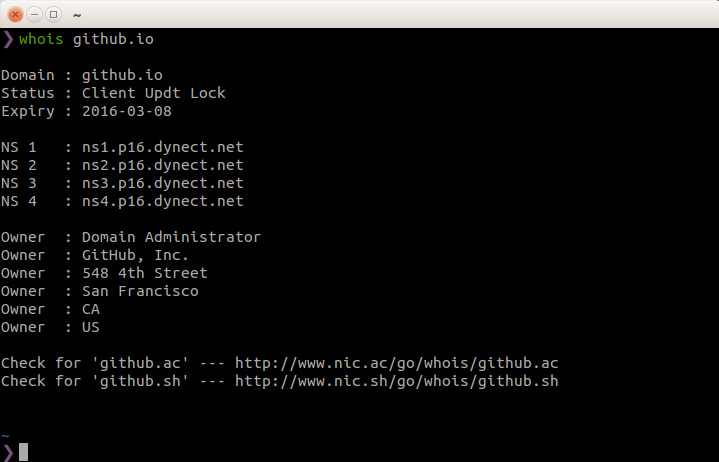
(Although you will need to install the ‘whois’ package first)
What if you have to work in Node and use Stylus for your CSS? No problemo!
Just run sudo apt-get install nodejs & npm install stylus -g.
NPM (Node Package Manager) is another utility which keeps track of your package versions and updates them.
Why should someone use the terminal?
If you are a developer or an indivisual who wants to write code, irrespective of which language you choose, you should, in my opinon, start using command line in your work and notice how much time you’ll save and how much faster your work will get done.
Just like there are best practice methods about using such and such languages, using the terminal is also a best practice method for any good programmer.
Besides, if you really want to be a good programmer, you can’t escape the terminal. For every programming language (JavaScript), it’s frameworks (Node), it’s libraries (Express) and everything else are installed through a terminal.
You just need to start with the basics (there is lot of documentation for setting up and getting started with a command line) and soon you’‘ll be installing languages, editing files, running servers and downloading videos from YouTube in no time!
All about the feeling.
When you work with a command line, it automatically makes you feel like you aren’t doing what every regular conputer user can do – Clicking away buttons and icons to get the job done. You are doing all your work by just writing a few lines of text in one window (making you feel more like a real programmer and less of a button-clicking-baboon). And that’s extraordinary.